Manage your players
Every screen and speaker signed in to your account is a player on your Players dashboard — one place to see what's playing where, name each after its room, and control any of them without walking over.
See and name your players
Open Players from the top menu. Each player is a card showing what it's playing and whether it's on. Click the name (or the pencil) to rename it after its room — Front Desk, Chair 3, Patio — so the list reads like your floor plan instead of a pile of gadget names.
Play, pause, and retune — from anywhere
- The round button plays or pauses that player.
- The dropdown changes its genre.
- A green dot means the player is connected and reacts in about a second; a grey dot means
it's on its own check-in and catches up within a minute.
This reaches every kind of device — a browser, iPhone or iPad, Apple TV, or Roku. One limit worth knowing: you can pause a player anytime, but starting one only reaches a device that's awake with the app open — a closed app or a dark screen can't be woken remotely.
Control everything at once
Above the list, Play all, Pause all, and Set all to a genre act on every player together — handy at open and close, or to switch the whole space to one mood.
A screen on its side, or upside down
Hung a TV on its side for a menu board, or upside down from a ceiling mount? Set its Screen orientation on its card — Portrait, turned left if its top edge is now on the left, Portrait, turned right if it's on the right, or Upside down — and everything that screen shows turns to match: the player, its idle screen, your trivia, and any screen you've designed. A portrait design fills the whole TV.
An Apple TV or a Roku can also be turned from its own Display settings, whichever is nearer. iPhones, iPads, and Macs turn themselves, so their cards don't offer it.
Sign a player out
The × on a card signs that player out for real: it ends that device's session, so it stops playing and drops to signed-out, not just off the list. Use it when a device leaves your control. Signing out everywhere from your account clears every player at once.
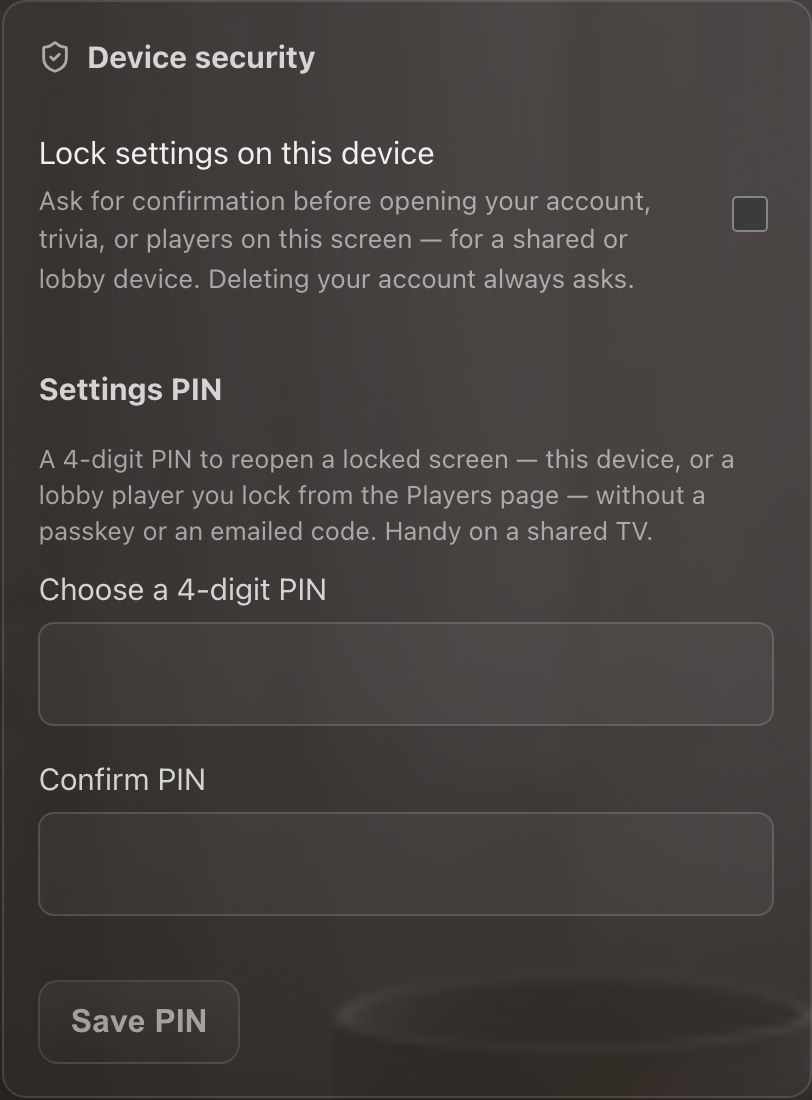
Keep a shared screen safe
On a device anyone can walk up to — a lobby tablet, a front-desk screen — turn on Lock settings on this device under Account → Device security. Opening Account, Trivia, or Players on that screen then asks you to confirm it's you first. It's off by default, so your own phone never nags you.