Playing on a TV with an iPhone or iPad
No Apple TV? An iPhone or iPad plus an inexpensive HDMI adapter turns any TV into the same big-screen experience: full-screen album art, the visualizer, and trivia, while you control everything from the device.
What you need
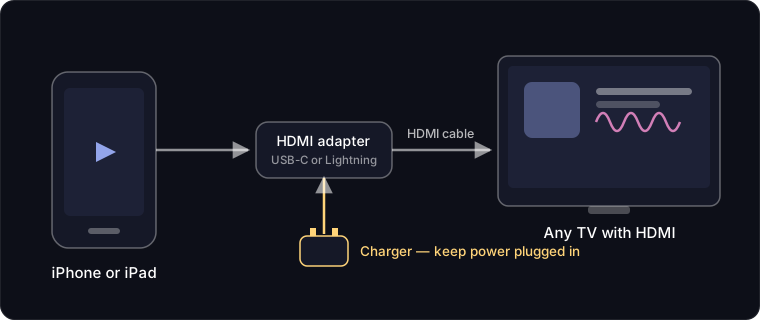
- An HDMI adapter from Apple: the USB-C Digital AV Multiport Adapter for USB-C iPhones and iPads, or the Lightning Digital AV Adapter for older ones.
- Any HDMI cable and a TV with a free HDMI input.
- Your usual charger.
Set it up
- Connect the adapter to your iPhone or iPad, the HDMI cable to the adapter and TV, and your charger to the adapter's power port.
- Switch the TV to that HDMI input.
- Open SoftWork Beats and press play. The TV shows the full-screen ambient display; the device stays your remote.
- Set Auto-Lock to Never (Settings → Display & Brightness) so the show never pauses for the lock screen.
Sound
By default the audio rides the HDMI cable into the TV, so the TV (or the soundbar behind it) does the talking. Prefer your own speakers? See Getting the music to your speakers.