Scheduling play and pause
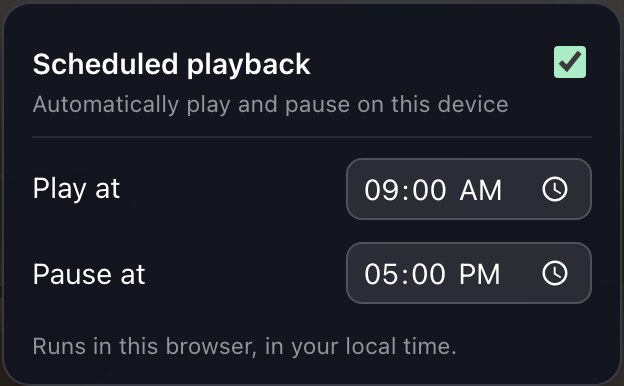
The daily schedule plays and pauses the music for you — set your opening and closing times once, and the room sounds right every morning without anyone remembering to press play.
Where to find it
- Web player: sign in and tap the clock button on the player. Turn on Playback schedule and pick your daily play and pause times.
- iPhone, iPad, and Mac: open the gear icon and choose Schedule.
- Apple TV: open Settings on the player — the schedule lives there, in five-minute steps. Leave Keep display on enabled (it is by default) so the app stays up and can start playback on its own.
How it behaves
- Times are daily and use the device's own clock and time zone.
- The schedule belongs to the device it's set on — the lobby TV and the back-office computer can keep different hours.
- At the play time the music starts exactly as if someone pressed play; at the pause time it stops. You can always override by hand in between.
- It's one play time and one pause time a day. Want more — a different genre each part of the day, or weekday-only hours? Apple Shortcuts can do that on iPhone, iPad, and Mac.
The fine print
- The player has to be running: keep the browser tab open on the web, or the app open on an always-on device. On Apple TV, Keep display on handles this for you.
- The Roku app doesn't have scheduling yet.